
The focus of this article isn’t really the history so much as what can OME in M365 do today, right now, what it cannot do, and some of my most frequent recommendations that I share with customers who are looking to implement the feature for their users.
Office Message Encryption (OME) has bore many names over the years.. It is based on the original Windows Rights Management Service (RMS) which migrated to Azure Rights Management Service (still RMS) and Information Rights Management (IRM) – then there has been legacy OME, basic OME and Advanced OME (which is sometimes called Premium when it comes to licensing!)
If you already have OME deployed, or are considering it as a greenfield or a competitive replacement – this article should give you some insight to major planning guidance, some gotchas, caveats, and configurations to perhaps avoid.
Major requirements that drive Advanced OME deployment
- Do you have more than one corporate brand identity?
- Are message expirations mission critical?
- Are message revocations mission critical?
If you answered YES to any of the above, you will find below that you want to deploy Advanced Message Encryption. If you do NOT need Advanced OME – this article still has value…. but it might convince you to do Advanced OME anyway. If you want regular or basic OME, there is still some planning for you here, so read on!
One of the selling points of Advanced OME is “driving people to the portal to read emails” this is what also makes them revocable! Unfortunately the opposite statement here is that “recipient auto decryption in their mail client” so if the auto decryption was critical to you, this is a hard decision to weigh!
Licensing
If you need Advanced – there are some licensing hurdles to cross. Details are documented in this article by Microsoft.
Advanced Message Encryption – Microsoft Purview (compliance) | Microsoft Learn
Clean up tasks
If your tenant or org has never used IRM or OME in the past (or tried some time ago, ceased usage and abandoned it) you may have some clean up tasks. A good way to identify this is if you see Encryption templates that have “ORG NAME – Confidential – View Only” and “ORG NAME – Confidential” templates. These are legacy OME templates, and I usually recommend removing them so that only the Encrypt and Do not Forward (DNF) options show. How to do this has changed over the years. It was in UI last in Azure Rights Management Service, but that has deprecated, as has the AARDM Powershell service. The best way to clean this up now is to install the AIPService Powershell Module and use Get-AIPServiceTemplate and Remove-AIPServiceTemplate to clean these up.
Confirm the service is working!
Next, you can use EXO Shell to run Test-IRMConfiguration. You will need to pass a Sender and a Recipient to this cmdlet to effectively test, but if you see anything other than a Pass here, there is work to be done to rectify it. This blog article isn’t about fixing OME, but there are many others that cover that.
Set up Microsoft Purview Message Encryption – Microsoft Purview (compliance) | Microsoft Learn
No RMS templates are available in your organization – Exchange Online (davidatkin.com)
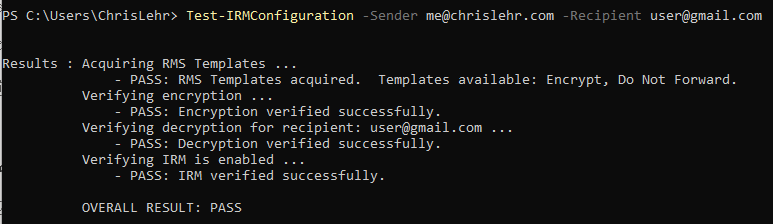
In theory if the above works, you should be able to use OWA or Outlook to then encrypt a message. If you’ve disabled things to hide the UI in OWA (via set-irmconfiguration) or Outlook (via InTune/GPO/SCCM/ADMX) you will need to clear that up. If you don’t your only options to trigger Encryption may be in the Purview DLP policies or an Exchange Online Transport Rule (EXO ETR)
Organizational Settings
Org settings for OME are stored in the Get/Set-IRMConfiguration cmdlet in Exchange Online. For ease of consumption, I am breaking these down into two groups. End user facing decisions and Administrative decisions.
Also of note – MANY of these commands show up in Get and are NOT reflected in Set. Some also are undocumented or under-documented. I won’t try to make up what they are supposed to do, but where I have insight, I have added it to this post.
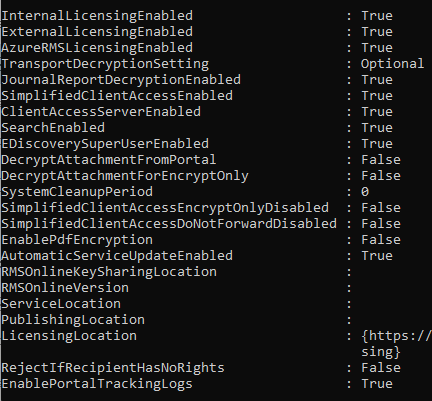
For Admins
- EnablePortalTrackingLogs – If you have licensing for Advanced this allows you to see details on recipients reading/authenticating/downloading from the OME Portal. Recommend this be TRUE, even if you do not have the licensing as more auditing capabilities can only be a good thing from a Compliance and Security perspective.
- EnablePdfEncryption – Recommend this be yes, but do read the item in the FAQ specific to this one. Windows Outlook doesn’t support PDF encryption is a surprise for most admins.
- SearchEnabled – OWA specific setting here – this is true by default and allows searching of OME messages. It does not state this, but I suspect it’s only OME messages that auto decrypt. More on that later.
- EDiscoverySuperUserEnabled – specifies if eDiscovery can access IRM protected messages. Again, I suspect this only applies on messages that have autodecrypted. No content stored locally means no content to index.
- JournalReportDecryptionEnabled – only important if you journal to save a decrypted copy of the encrypted message. I have not yet worked with an organization doing journaling in EXO, but all the articles for this setting seem to be Exchange 2013 on premises based. The set cmdlet allows this to be changed in EXO however. I asset that if you are journaling you may want this set to $true but otherwise it isn’t critical to your configuration.
- AutomaticServiceUpdateEnabled – this option allows you to opt in or out of new OME features announced in the message center. There hasn’t been much reason to consider this setting aside from friend of the blog Jeff Guillet’s mention of it in late 2019/early 2020, there was a message center update about an ETR for DLP Microsoft was to deploy for those who had this set to $true. This ended up getting walked back and not happening, but I can see they might use this again in the future. So if you aren’t watching message center, I would recommend you set this to false, but if you keep on top of those updates, true might be OK unless you see a change announced that you disagree with!
- TransportDecryptionSetting – Default is Optional, Mandatory and Disabled options exist. Enforcing Mandatory will NDR messages that are unable to be decrypted. I’ll be honest, I am not sure why/when you would use this one – if you do, let me know!
- RejectIfRecipientHasNoRights – this one is interesting, but it has no description, no definition, cannot be set, and github folks are quite tired of hearing about it. Description missing for parameter RejectIfRecipientHasNoRights · Issue #9130 · MicrosoftDocs/office-docs-powershell · GitHub
- SystemCleanupPeriod – no definition, cannot be set.
For Users
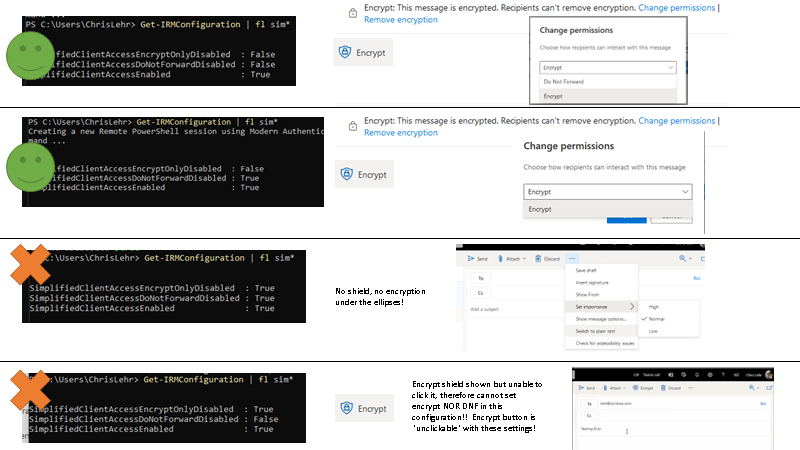
- SimplifiedClientAccessEnabled – this is an OWA only option that changes the Encrypt option to be much more prominent. It helps drive usage adoption quite a bit IMO.
- SimplifiedClientAccessEncryptOnlyDisabled – This set to $true DISABLES the Encrypt template.
- SimplifiedClientAccessDoNotForwardDisabled – This set to $true DISABLES the Do Not Forward template.
A caution on Simplified Client Access
The above three attributes can easily be configured incorrectly! The image below shows two configurations that work, and two that are non functional.
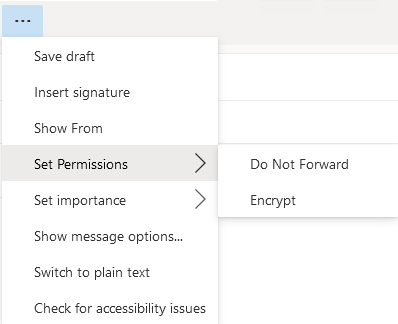
Of course, if you choose to NOT use Simplified Client Access – the options will still exist in OWA, they are just hidden from most user’s view under the ellipses:
OME Configuration
This section covers OME configuration, but the most important concept here is to understand what this layer of configuration really represents. The IRMConfiguration above is indeed org wide. The Set-OMEconfiguration in Exchange Online has one “default configuration” – aptly named “OME Configuration” – I have yet to see a tenant where the default wasn’t named that. If you have any OME configurations named something aside from “OME Configuration” – those are advanced OME configurations. (My term, not Microsoft’s – I think it needs a new name because the marketing and technical articles fail to align this key point)
With the default “OME Configuration” – you can do your organizational branding as well as set some additional options.
- SocialIDSignIn – allows recipient to sign in with Google, Yahoo or Microsoft (consumer) account
- OTPEanbled – allows recipient to use a One Time Passcode (OTP) – if set to false, the recipient must sign in with an Microsoft 365 work or school account to read a message
A brief word about these sign in options – both are susceptible if your recipient’s account has been compromised. Also, you cannot set BOTH to $false:

We typically recommend BOTH to be set to $true because it offers recipients the most options. We recently had a customer using just OTP and their Android mobile devices were opening the browser within their email which caused an unfortunate loop of being unable to click the link, and then get the code to go back to access the email. They implemented SocialIDSignIn which helped, but only if the recipient was Google/Yahoo/Microsoft – a Comcast or other ISP emails were able to use OTP still, but if they were an Andriod AND non-SocialIDSignIn recipient domain, the issue persists without a known fix!
With the advanced OME configuration, you can also configure:
- ExternalMailExpiryInterval – This is actually set using -ExternalMailExpiryInDays so you don’t need to present the day.hours:minutes:seconds format
Expiration IS advertised to recipients, so if using this you might want to include that in your communication plan.
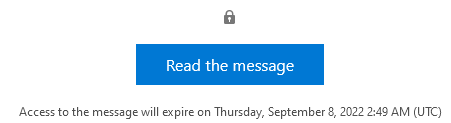
Said another way… if you don’t use advanced OME licensing, you cannot set expirations and you are limited to a single branding template.
I you do not need Advanced Encryption – you are nearly done at this point. Your quick list of to do’s:
- Add your corporate branding to the default “OME configuration”
- Fair bit of end user training
- maybe an Exchange Online specific DLP policy to catch PII/HIPAA/Financials and encrypt on the way out
- Make an ETR to “encrypt when the word ‘encrypt’ is in the subject line” and you are done.
Branding
Microsoft does a fairly good job of documenting what you can and cannot customize in their article here so to stay shorter, I won’t go into this detail more for this article.
Add your brand to encrypted messages – Microsoft Purview (compliance) | Microsoft Learn
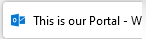
The only place Microsoft documentation does leave some confusion is on PortalText – this shows up in the HTML Title when a user reads a message in your portal (see below)
Triggering Advanced OME configurations
The other confusing thing is “How does a user trigger Advanced Encryption” To answer that, first lets talk about the three ways a user can trigger basic OME encryption:
- Click on Encrypt in their client where supported
- Conditionally via an Exchange Transport Rule (ETR)
- Triggering in Purview from a DLP policy match
We can make the advanced OME trigger in all of these same scenarios, but it requires some planning on how to implement.
First decision needed – do you EVER want users to use the “OME configuration” – said another way – do you see the lack of expiration/revocation as a risk. If you say YES to this, you will want an ETR like this to trigger your custom OME configuration for every OME encrypted message.
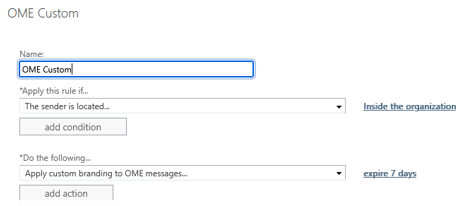
The above ETR would actually fire for all three of the above cases. If you do something like this your “OME configuration” should not be getting utilized. To test this, I recommend you do branding on the default configuration to be similar but made to be identifiable somehow (for me, I did a slight edit in the DisclaimerText so I can tell if it was being used) This is important as we will see down below – we cannot really “report” on which configuration was utilized!
So that’s the “clobber” way – now to use some finesse. If you have three brands and you also want to never use basic, you would need three custom OME configurations, and three ETRs with conditions that catch 100% of your users. This is where your things like Departments, company names, etc can hurt you if they are not aligned. It’s very simple if you have them already separated by primary email domain as that is more likely going to be standardized. If you have any concerns about the corner cases where a sender isn’t going to match one of your three ETR/branding combinations, you would still want a rule like the above as your fourth ETR to “brand with an advanced OME configuration” in case the prior three ETRs did not trigger. I shouldn’t need to state this, but order of ETRs matter.
Revocation
Microsoft has an article on what messages can be revoked here:
Note this article also shows the mixed use of Advanced and Premium wording and this big note that you are guaranteed to be able to track or revoke without custom branding. Super misleading wording as you can add branding with a basic or advanced OME configuration. They should make this more clear.

Also from that link above they have this:
“Admins and message senders can revoke encrypted emails if the recipient received a link-based, branded encrypted email.”
The wording “link-based, branded encrypted email” means really that the email didn’t auto decrypt in the recipient mailbox. They again try to use “branded” to delineate this, but since the default can be branded it is confusing to some. It also brings me to the most confusing section of an article – the “Ensure all external recipients use the OME Portal to read encrypted mail.
Manage Office 365 Message Encryption – Microsoft Purview (compliance) | Microsoft Learn
They tell you there to create a transport rule to apply encryption to all emails. Worse, the shell examples say to use the default “OME encryption” when really to FORCE TO THE PORTAL you should use the advanced one. Again they mix in the “custom branding” like that is the major hurdle which further confuses readers into thinking they can do this without Advanced Message Encryption.

Revocation Findings!
After an exhaustive test routine and repeating my tests twice, my findings are below.
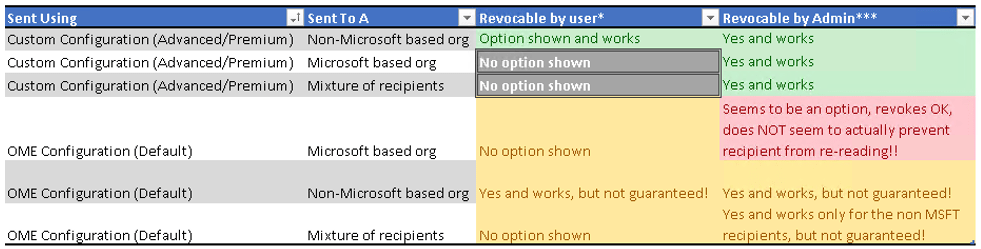
So let’s first recap the items above:
- OME Configuration has a GIANT issue in RED. Admins are shown the revocation option. They can click it. It succeeds, but since it was sent with the default configuration, it’s been decrypted in the destination tenant and can still be read.
- OME Configuration items in YELLOW above. This is where the lack of guarantee is concerning, if Microsoft opted to not allow you to do those things, you may have a compliance issue! The end user revocation options are a little more unique. If you sent to Microsoft based organizations at all, you don’t seem to see a revocation option. If you sent to GMail for example, you DO.

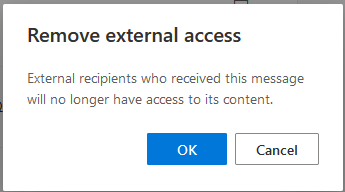

- Custom Configuration admin items in GREEN All Admin revocations are shown and work (I’ll show admin reporting/revocation still further down!)
- Custom Configuration user revocation in GREEN is unfortunately still ONLY if they sent to a non Microsoft entity.
- Custom Configuration user revocation in GREY is in my opinion something that should be GREEN. The admin revocations function, so a user revocation should as well – in my opinion the UI in OWA is following the logic required for the default “OME configuration” without knowledge or insight to the fact that a custom advanced configuration may have been in use – perhaps because it is applied via Transport rule.
- Another call out regarding that last item – if your OME is encrypting on the way out via ETR or DLP policy, they end user UI will NOT show it as sent encrypted as the user didn’t initiate the encryption. This means they will not be shown the encryption/revocation options for message encryption triggering based on conditions outside of the users decision to encrypt.
Administrative Reporting and Revocation
The reporting on Encryption leaves a fair bit to be desired.
First the S&C center (protection.office.com) for a VERY long time was the only place to see the encryption report, but they recently moved this to the Purview Admin center here:
Encryption report – Microsoft Purview
I was VERY hopeful they would address some concerns with this move, but it’s very much the same. My grievances below in order of offensiveness!
- This report runs 1x per day and we don’t know when!
- This report seems numerically challenged!
- See SS below showing 4+3+1+9+1 equaling 1
- No reporting method exists to see if they used OME Configuration or any advanced OME configurations – you literally cannot tell as an administrator which was used unless you yourself were a recipient and you made the branding unique enough that you can ID which was in use!
- This report doesn’t have filters for senders/recipients
- There is an EXO PowerShell equivalent Get-MailDetailEncryptionReport or Get-MailTrafficEncryptionReport but:
- It also only updates once per day
- You still cannot filter by sender/recipient
- You CAN however include Direction and Domain which is of little value in this regard, all OME you might track are outbound and the domain would be from your accepted domains, so you cannot see “all OME emails sent to contoso.com” with it
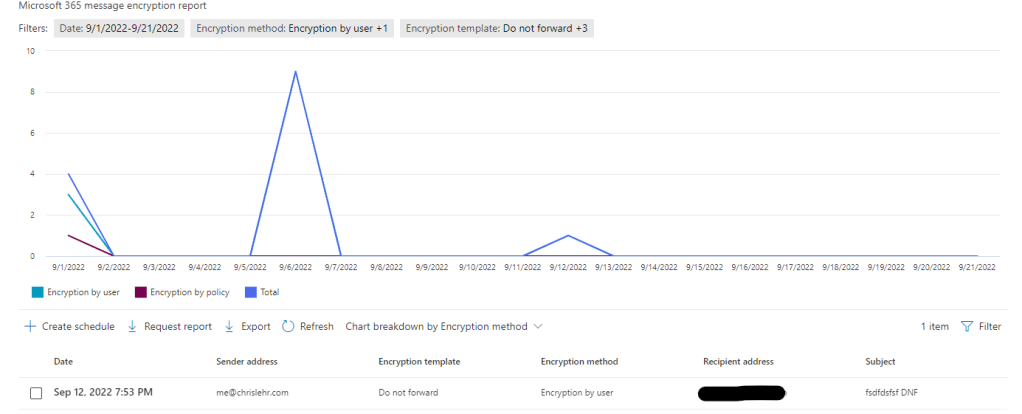
From the UI and from EXO shell – administrator revocation is easy and works as expected – I won’t show the PowerShell version, but Tony Redmond’s article here covers that – and it shows a good tip – don’t wait for your report to run once a day, if someone needs something revoked, go Message Trace (or Threat Explorer) the outbound message, get the MessageID, and then you can revoke it.
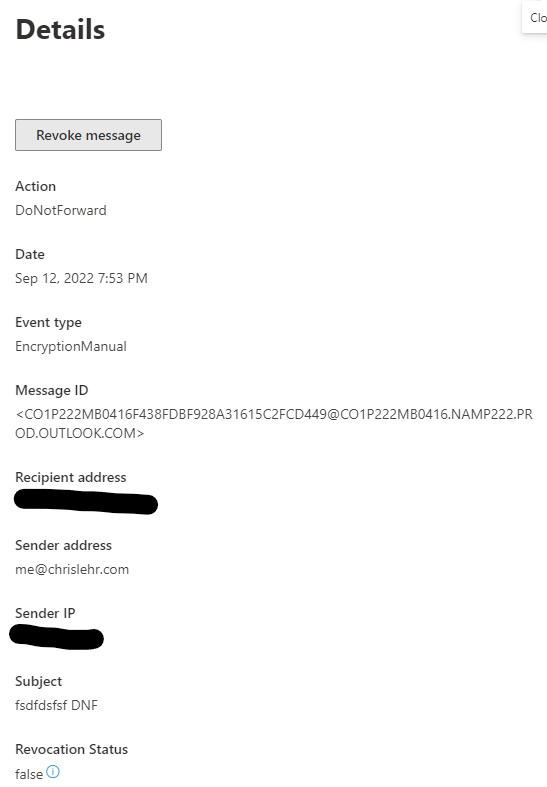
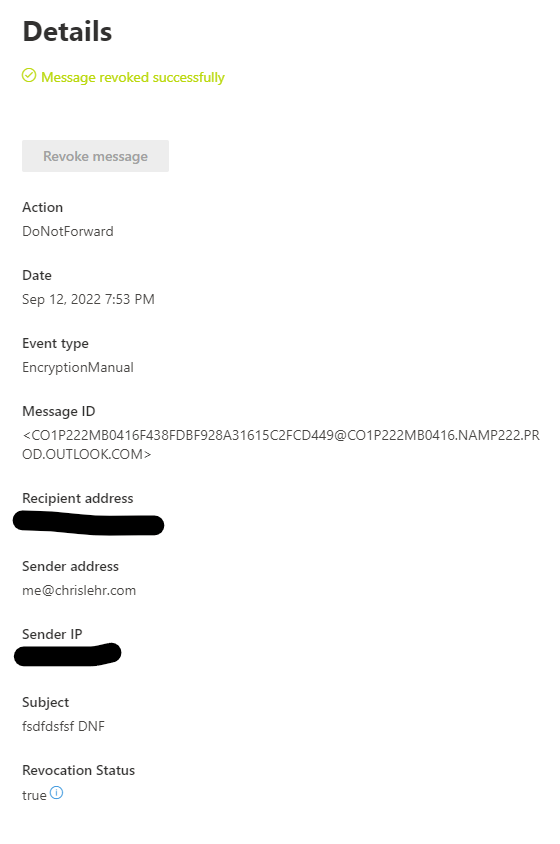
Finally – if you turned EnablePortalTrackingLogs to $true in your IRMConfiguration (YOU DID TURN IT ON RIGHT?) you have more search options in your Purview Audit center – (search for Encryption to see this)
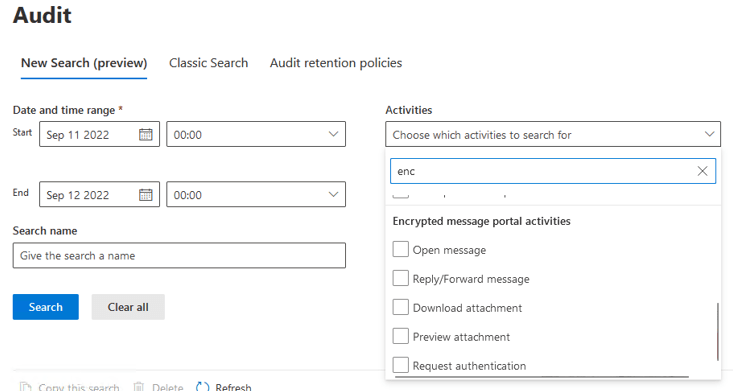
And some sampling of this populated:

In Closing
Advanced Encryption seems to do what other people in this space can do out of the box and I think the value it provides in expiration and revocation far exceeds the value of multiple brand identities, but they are obviously tied to the same configuration requirements.
- Improve the reporting experience by:
- Adding which OME configuration was used
- Reporting numbers correctly. Is this recipients, emails, or an error?
- Make a PowerShell cmdlet that is more than once per day so an admin can review and react quicker or without extra tasks
- Make filters for recipient/senders
- Add revocation status in the table views not in the unique message views
- Multiple organizational brands shouldn’t be a pay feature any longer.
- If an advanced OME configuration is in use, all OME custom branded revocations should be end user facing. It seems to follow the logic of the default OME configuration and it doesn’t need to.
Well – I hope you found value here. Please tweet/share/comment if you did.
 Musings 365